
Hi! Welcome to Butter & Sage Market. We're so thrilled you've chosen to build your business in our marketplace. We strive to make it easy and intuitive to use, and we're constantly working to improve, but with all of the features and functionality we offer we know sometimes you need a little bit more information to navigate all there is to offer. We've compiled our documentation to try to answer the most frequently asked questions. Rest assured, if you ever get stuck help is just a DM or email away.
Vendor Dashboard
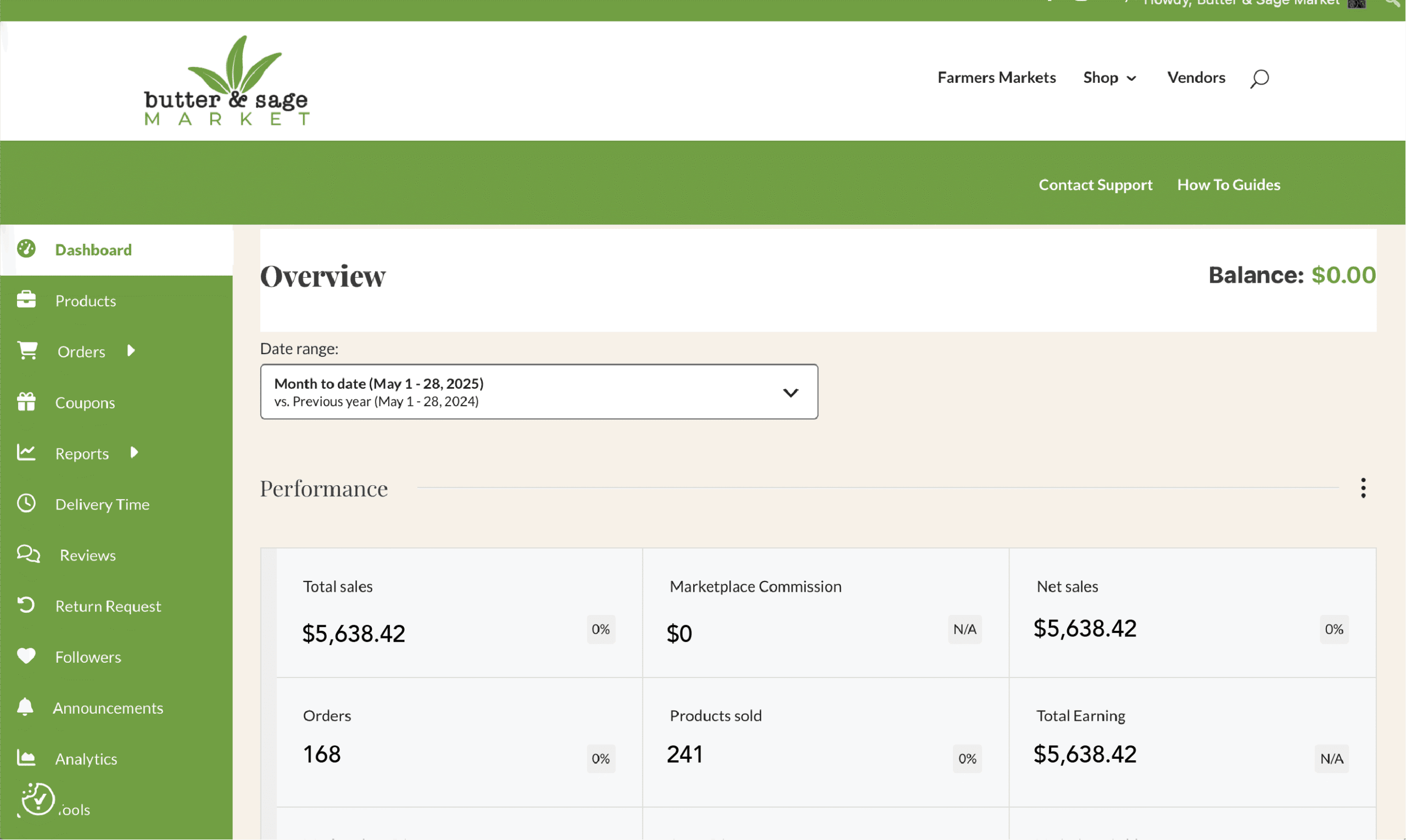
 Your vendor dashboard is your starting point. Everything you need to do is found here. To navigate to your dashboard login to your account using the My Account link in the top right corner. Once logged in you'll see the Vendor Dashboard button on your account page. The main overview page provides information regarding your sales for the month.
Options for navigating the dashboard are listed on the left hand side. Some of the items have sub-menus. Items with sub-menus are indicated with a right facing arrow.
Products
 The products section provides an overview of your current products and the option to add new products. For basic subscribers you have a limit of 5 simple products. If you have the monthly or annual subscription you can create unlimited products, downloadable products, and variable products.
To create a product, navigate to the vendor dashboard. And then click on Products from the left menu. After that click on the Add New Products button from the top right corner.
You’ll get a new window where you will be able to create a new product adding all of the details. To help your product be found in our 'Shop' navigation make sure to apply all of the relevant categories and tags.
Important note about 'Custom Order products:
- Use the category 'Custom Order' for any item where the customer needs to request a quote from you. Products in this category automatically have a 'Request a Quote' form for the customer to send to you.
Use tips for product tags:
- Use 'gluten free' or 'seed oil free' to help communicate product qualities
- Use Farmers Markets tags to help your products get found in our Farmers Market directly. Visit the Farmers Market page for markets you attend to learn more about how to use this function.
Once you've created a few products manually you may want to test using the product export function to get a .csv template of the product details. You can use this to add new products following the basic format. You can still modify imported products in the Product menu setting to refine any details that didn't import correctly.
Orders
The orders tab provides an overview of your current orders and their status. In addition to order placed on our site you can also manually add a new order. This function is helpful if your customer has requested a quote for one of your custom order items and you want to send them an invoice for them to pay for the item.
Coupons
Coupons are a great way to encourage more sales from your customers! You can create as many coupons as you like to share on your different platforms to promote your products. Any coupons created will also show up on your store page.
Reports
We know that information and data is critical to helping you understand how to grow your business. We've provided a lot of segments of data for you to evaluate how your different offerings are performing. There's even export functions for statements if needed for your financial and tax reports.
Delivery Time
 Managing your delivery and pick-up calendar is critical for small and cottage food businesses. We've provided a handy calendar view to display all of your scheduled delivery and/or pickup orders. You can control the available times that your customers can select to book time on your calendar in the Settings menu.
Reviews
When customers leave reviews for your store you can view them here.
Return Request
If you have allowed for return requests in your store return policy you will find those requests here.
Followers
Customers with accounts on our marketplace can choose to follow your store. You'll find those followers here. Whenever you add or update products your followers are automatically notified by email with links to view your new items.
Announcements
Sometimes we need to notify you of changes in the platform, updates, or maintenance. You'll find any of our communications that apply to all vendors in the Announcements section.
Analytics
 Analytics is another section to get more detail on the performance of your store. You can view your overall traffic and referrals, popular products based on visits, device types that visit your store, and what keywords are sending traffic your way.
Tools
Tools is for more advanced users who are ready to import .csv or .xml. For our basic users we don't recommend this function. There is an export/ import feature for adding products in the Product menu if you want to bulk create products.
Product Q&A
Sometimes customers can come up with questions we hadn't even thought of. For this reason we offer a Product Q&A section on our product pages for customers to ask about more details they might want to know before they make a purchase. Those questions are then displayed on the product page to help educate other customers. When someone asks about one of your products it will show up in your Product Q&A section in the dashboard. You can answer those questions directly here and they will display on your product page.
Create Classes & Events
 If you are a culinary educator you'll find this option to be a real time saver. You can create all of the details of your class, have your event listed on your shop page, and also get listed in our marketplace in the Food Events section to help drive more attendance. All of the necessary components are available for a successful class:
- Add descriptions, details, and important information
- Set a limit on the number of registrations
- Add price and collect registration payment
- Provide an add to calendar function
- Set automatic reminders
And so much more! Use this feature to help your customers know which markets you're attending, host pop-up events, or add another entire new revenue stream to your business.
Settings
It's the last menu on your dashboard but it's one of the most important! This is where you'll control the look and feel of your store, configure payment options (if you didn't do this during setup), set your pickup and delivery availability, and more. Browse through the options and make sure everything is set exactly as you like.
Two settings the Store menu that will be very important for you:
- Banner and profile pic - for your banner we HIGHLY recommend an image without text. Your banner is used in multiple locations on our marketplace and any image with text may get cutoff in the different ways it is displayed. Your banner should be a clear image with subject matter that portrays what you do and what you offer. For example, if you bake bread include a picture of your bread loaves. We make sure to include your branding with your store name and profile pic everywhere your store is mentioned, so use those two opportunities to further reinforce your brand.
- Geolocation - if you didn't set this during registration make sure to set it now. Everything about our platform is about customers finding you based on your location. If you don't set this customers will think you are in Round Rock, TX (we're here but we're guessing you're not 🙂 ).
- Vacation - everyone needs it. You can pre-schedule your vacation time or temporarily close your shop. When you're in vacation mode a notice will display on your store and customers won't be able to place orders.
Payment
This is the most critical setting for you!
If you haven't connected your Stripe account you can't sell and you can't get paid. It's fast and easy. Go to the Payments menu in Settings, click the Stripe button and login to your Stripe account. Stripe manages the connection to our platform so that you account details are always secure.
The benefit of using Stripe is it's adaptive payment feature. Everytime a user makes a purchase Stripe puts the funds directly into your account. You never have to wait for us to transfer funds to you, and no withdrawal requests.
 Delivery Time
 Delivery Time
For most of our vendors being able to control when customers can schedule pickup and/or delivery (or even limit which ones you'll offer) is critical.
- Select pickup only, delivery only, or both
- Set a buffer for how many days advanced notice you need (this prohibits any customers from placing an order and selecting a pickup time before your desired notification date).
- Limit how many customers can select that pickup time. If you can only delivery 5 loaves of bread in a day make sure to set a pickup time with your window and set a limit of 5.
- Set the days of the week you want to be available and the hours during that day that can be selected.
Shipping
If your business offers shipping you can configure those details here. You can also add your shipping policies.
- Click Edit next to the Zone US (you can modify this name if needed).
- Add states for the zone
- Edit the Flat Rate shipping method, and/or add new methods.
You'll also have options for setting a rate for the first item and then add one rates for additional items.
Social Profile
If you want your customers to see your social channels add those profiles here and they will appear on your store page.
RMA
Set your return and warranty policies. Butter & Sage Market does not offer returns, but you can change that for your individual store if needed.
Store SEO
Help search engines find you! We highly recommend filling out the Store SEO section to optimize your store for search and social channels.